初心易得,始終難守
C'est la vie.© 2002 - 2026
  • 我是誰-Who Am I
  • 我在哪-Where Am I
  • 我是什麼-What Am I
  • 年鑑-YearBook
    • 二零零六年终总结
    • 一吻定情—二零零八年年终总结
    • 突如其来的明天—二零零九年年终总结
    • 人生大起大落得太快——二零一零年年终总结
    • 贰零①①年年终总结-女朋友已经成家了
    • 贰零壹贰年年终总结-奔波的肿瘤
    • 贰零壹叁年年终总结
    • 雪字怎么写-贰零壹肆年年终总结
    • 每个不曾表白的今天,都是对青春的亏欠-贰零壹伍年年终总结
    • 按部就班的IT 人生-貳零貳肆年年終總結
    • 真正的閱讀-貳零貳伍年年終總結
  • 連結
RSS
11 月 14 日, 2025 年

mysql-server v8.0 升級v8.4 的bug – [ERROR] [MY-013379] [Server] Server upgrade started with version 80400, but server upgrade of version 80044 is still pending.

Ken Tech 0 Comments

以前mysql-server 升級都很簡單,先升級binary 然後手動進去mysql_upgrade,現在他改成自動upgrade ,反而產生了很多問題:

bug https://bugs.mysql.com/bug.php?id=96696

Home server 上的docker container 裡面有一個mysql-server 用來給zabbix 和grafana 使用,因為最近很多雲端服務商都提醒升級到 v8.4 ,因為v8.0 在2026年4月要EOL。

然後我就想來升級一下,理應是一個很簡單的步驟,不就是改一下tag ,重新pull image,自動 upgrade 不就好了嗎?然後他就卡住了,一直在upgrade 的地方loopback。

既然卡住了,我想可以起一個臨時的container 然後手動來執行mysql_upgrade,然後發現這個command 已經在新的image中被刪掉了。

然後我又想,是不是從v8.0.44 到v8.4.7 跨度太大?改成v8.4.0 的tag 試試,還是卡住:

docker logs -f mysql-temp
2025-11-14 01:17:04+00:00 [Note] [Entrypoint]: Entrypoint script for MySQL Server 8.4.0-1.el9 started.
2025-11-14 01:17:04+00:00 [Note] [Entrypoint]: Switching to dedicated user 'mysql'
2025-11-14 01:17:04+00:00 [Note] [Entrypoint]: Entrypoint script for MySQL Server 8.4.0-1.el9 started.
'/var/lib/mysql/mysql.sock' -> '/var/run/mysqld/mysqld.sock'
2025-11-14T01:17:05.064977Z 0 [System] [MY-015015] [Server] MySQL Server - start.
2025-11-14T01:17:05.323886Z 0 [System] [MY-010116] [Server] /usr/sbin/mysqld (mysqld 8.4.0) starting as process 1
2025-11-14T01:17:05.338396Z 1 [System] [MY-013576] [InnoDB] InnoDB initialization has started.
2025-11-14T01:17:05.737981Z 1 [System] [MY-013577] [InnoDB] InnoDB initialization has ended.
2025-11-14T01:17:05.753945Z 1 [ERROR] [MY-013379] [Server] Server upgrade started with version 80400, but server upgrade of version 80044 is still pending.
2025-11-14T01:17:05.754547Z 0 [ERROR] [MY-010020] [Server] Data Dictionary initialization failed.
2025-11-14T01:17:05.754608Z 0 [ERROR] [MY-010119] [Server] Aborting
2025-11-14T01:17:06.284102Z 0 [System] [MY-010910] [Server] /usr/sbin/mysqld: Shutdown complete (mysqld 8.4.0)  MySQL Community Server - GPL.
2025-11-14T01:17:06.284134Z 0 [System] [MY-015016] [Server] MySQL Server - end.

檢索了一下,這是個bug https://bugs.mysql.com/bug.php?id=96696

根據這個bug 的說明,解決方法如下:

使用 --upgrade=MINIMAL 啟動一個臨時的container, 看起來可以啟動:

docker run -d --name mysql-temp \
  -v /mnt/APP/mysql-server-data:/var/lib/mysql \
  mysql:8.4 --upgrade=MINIMAL

13fb5f920e59c49dee18b5966a983572f18c4bcd0f3740c53489b5871b2dcb5a
root@truenas[/mnt/APP/mysql-server-data]# docker logs mysql-temp
2025-11-14 01:21:45+00:00 [Note] [Entrypoint]: Entrypoint script for MySQL Server 8.4.7-1.el9 started.
2025-11-14 01:21:46+00:00 [Note] [Entrypoint]: Switching to dedicated user 'mysql'
2025-11-14 01:21:46+00:00 [Note] [Entrypoint]: Entrypoint script for MySQL Server 8.4.7-1.el9 started.
'/var/lib/mysql/mysql.sock' -> '/var/run/mysqld/mysqld.sock'
2025-11-14T01:21:46.486026Z 0 [System] [MY-015015] [Server] MySQL Server - start.
2025-11-14T01:21:46.767991Z 0 [System] [MY-010116] [Server] /usr/sbin/mysqld (mysqld 8.4.7) starting as process 1
2025-11-14T01:21:46.786566Z 1 [System] [MY-013576] [InnoDB] InnoDB initialization has started.
2025-11-14T01:21:47.098789Z 1 [System] [MY-013577] [InnoDB] InnoDB initialization has ended.
2025-11-14T01:21:48.674335Z 0 [Warning] [MY-013378] [Server] Server upgrade is required, but skipped by command line option '--upgrade=MINIMAL'.

InnoDB: Progress in percents: 1 2 3 4 5 6 7 8 9 10 11 12 13 14 15 16 17 18 19 20 21 22 23 24 25 26 27 28 29 30 31 32 33 34 35 36 37 38 39 40 41 42 43 44 45 46 47 48 49 50 51 52 53 54 55 56 57 58 59 60 61 62 63 64 65 66 67 68 69 70 71 72 73 74 75 76 77 78 79 80 81 82 83 84 85 86 87 88 89 90 91 92 93 94 95 96 97 98 99 1002025-11-14T01:21:51.271019Z 0 [Warning] [MY-010068] [Server] CA certificate ca.pem is self signed.
2025-11-14T01:21:51.271083Z 0 [System] [MY-013602] [Server] Channel mysql_main configured to support TLS. Encrypted connections are now supported for this channel.
2025-11-14T01:21:51.275790Z 0 [Warning] [MY-011810] [Server] Insecure configuration for --pid-file: Location '/var/run/mysqld' in the path is accessible to all OS users. Consider choosing a different directory.
2025-11-14T01:21:51.331885Z 0 [System] [MY-010931] [Server] /usr/sbin/mysqld: ready for connections. Version: '8.4.7'  socket: '/var/run/mysqld/mysqld.sock'  port: 3306  MySQL Community Server - GPL.
2025-11-14T01:21:51.332177Z 0 [System] [MY-011323] [Server] X Plugin ready for connections. Bind-address: '::' port: 33060, socket: /var/run/mysqld/mysqlx.sock

然後,

  1. SET GLOBAL innodb_fast_shutdown = 0;
    設置 InnoDB 完全關閉模式,確保所有dirty page 都寫入磁盤,不會有數據丟失。
  2. FLUSH TABLES WITH READ LOCK;
    刷新所有表到磁盤,對所有表加讀鎖,防止寫入操作。
  3. UNLOCK TABLES;
    釋放表鎖。
docker exec mysql-temp mysql -uYOU-USER-NAME -pYOUR-PASSWORD -e "
SET GLOBAL innodb_fast_shutdown = 0;
FLUSH TABLES WITH READ LOCK;
UNLOCK TABLES;"
mysql: [Warning] Using a password on the command line interface can be insecure.

重啟試試:

ocker run -d --name mysql-temp \
  -v /mnt/APP/mysql-server-data:/var/lib/mysql \
  mysql:8.4
9388c2b2f4bcf09ae2a63c73e81d7f796faf4273b94ed00aa66ebeb98559c921
root@truenas[/mnt/APP/mysql-server-data]# docker logs -f mysql-temp
2025-11-14 01:23:11+00:00 [Note] [Entrypoint]: Entrypoint script for MySQL Server 8.4.7-1.el9 started.
2025-11-14 01:23:12+00:00 [Note] [Entrypoint]: Switching to dedicated user 'mysql'
2025-11-14 01:23:12+00:00 [Note] [Entrypoint]: Entrypoint script for MySQL Server 8.4.7-1.el9 started.
'/var/lib/mysql/mysql.sock' -> '/var/run/mysqld/mysqld.sock'
2025-11-14T01:23:12.698238Z 0 [System] [MY-015015] [Server] MySQL Server - start.
2025-11-14T01:23:12.952908Z 0 [System] [MY-010116] [Server] /usr/sbin/mysqld (mysqld 8.4.7) starting as process 1
2025-11-14T01:23:12.967501Z 1 [System] [MY-013576] [InnoDB] InnoDB initialization has started.
2025-11-14T01:23:13.281082Z 1 [System] [MY-013577] [InnoDB] InnoDB initialization has ended.
2025-11-14T01:23:14.582439Z 4 [System] [MY-013381] [Server] Server upgrade from '80044' to '80407' started.
2025-11-14T01:23:20.682007Z 4 [System] [MY-013381] [Server] Server upgrade from '80044' to '80407' completed.
2025-11-14T01:23:20.872102Z 0 [Warning] [MY-010068] [Server] CA certificate ca.pem is self signed.
2025-11-14T01:23:20.872183Z 0 [System] [MY-013602] [Server] Channel mysql_main configured to support TLS. Encrypted connections are now supported for this channel.
2025-11-14T01:23:20.876381Z 0 [Warning] [MY-011810] [Server] Insecure configuration for --pid-file: Location '/var/run/mysqld' in the path is accessible to all OS users. Consider choosing a different directory.
2025-11-14T01:23:20.906537Z 0 [System] [MY-011323] [Server] X Plugin ready for connections. Bind-address: '::' port: 33060, socket: /var/run/mysqld/mysqlx.sock
2025-11-14T01:23:20.906596Z 0 [System] [MY-010931] [Server] /usr/sbin/mysqld: ready for connections. Version: '8.4.7'  socket: '/var/run/mysqld/mysqld.sock'  port: 3306  MySQL Community Server - GPL.


root@truenas[/mnt/APP/mysql-server-data]# docker exec mysql-temp mysql -uYOU-USER-NAME -pYOUR-PASSWORD -e "SELECT VERSION();"
mysql: [Warning] Using a password on the command line interface can be insecure.
VERSION()
8.4.7

看起來升級完成了:

2025-11-14T01:23:14.582439Z 4 [System] [MY-013381] [Server] Server upgrade from ‘80044’ to ‘80407’ started.
2025-11-14T01:23:20.682007Z 4 [System] [MY-013381] [Server] Server upgrade from ‘80044’ to ‘80407’ completed.
11 月 8 日, 2025 年

Docker 中的 WordPress

Ken Tech 0 Comments

2018年的時候我就說要容器化了,但是一直沒有做這件事情,最主要的原因是我一直使用FreeBSD 而不是很愛用Linux,這幾天終於完整的把既有環境遷入了docker container,遇到的問題主要有這樣幾個:

1)一些必要的 php-fpm modules 需使用dockerfile compile,這可能會花費一些時間,在第一次運行時。
2)因為我使用php.sock,so both containers need to access /tmp or wherever you put the php.sock,如果您使用port 9000,那就更簡單一些。
3)php-fpm和nginx 的配置文件中需要修改對應的run as user,因為目前大多數的docker images 是使用debian 系統構建的,所以需要修改為www-data user 才不會有file permission 的問題,同時host 上的文件權限也要對應,如何對應呢? 不要費勁去找什麼uid,docker exec -it nginx bash 然後chown -R www-data:www-data /home/www。
4)systemd 啟動文件要手動加一個。
5)wordpress 的wp-config.php 中需要將database host 修改為container name mysql-server,以及 redis object cache 的redis host 需要將其修改為redis 或者valkey container name。
6)php.ini 中如果有使用redis 存儲session 的話,也需要將其修改為redis 或者valkey。

看起來docker 應該在debian 或者ubuntu 上運行是最好的,因為container 內的app 如果需要讀寫host 的文件,通常他們的OS level user 是很容易對齊的,當然,對於那些不需要讀寫host 的micro services 來說,就沒有任何區別。

——

docker-compose.yaml

——

services:
  mysql:
    image: mysql:8.4
    container_name: mysql-server
    restart: always
    ports:
      - "3306:3306"
    environment:
      - TZ=Asia/Taipei
      - MYSQL_ROOT_PASSWORD=password
    volumes:
      - /var/lib/mysql:/var/lib/mysql
      - /etc/my.cnf:/etc/my.cnf
  memcached:
    image: memcached:latest
    container_name: memcached
    restart: always
    ports:
      - "11211:11211"
    command: ["memcached", "-m", "8"]
  redis:
    image: redis:latest
    container_name: redis
    restart: always
    ports:
      - "6379:6379"
    command: redis-server --maxmemory 8mb --maxmemory-policy allkeys-lru
  valkey:
    image: valkey/valkey:latest
    container_name: valkey
    restart: always
    ports:
      - "6380:6379"
    environment:
      - VALKEY_EXTRA_FLAGS=--maxmemory 8mb --maxmemory-policy allkeys-lru
  redisinsight:
    image: redis/redisinsight:latest
    container_name: redisinsight
    restart: always
    ports:
      - "5540:5540"
    environment:
      - TZ=Asia/Taipei
    volumes:
      - /home/ec2-user/redis-insight:/data
  nginx:
    image: nginx:latest
    container_name: nginx
    restart: always
    ports:
      - "80:80"
      - "443:443"
      - "3000:3000"
    volumes:
      - /etc/nginx:/etc/nginx:ro
      - /home/www:/home/www
      - /tmp:/tmp
    environment:
      - TZ=Asia/Taipei
  php-fpm:
    build: .
    container_name: php-fpm
    restart: always
    volumes:
      - /home/www:/home/www
      - /etc/php/php.ini:/usr/local/etc/php/php.ini
      - /etc/php/php-fpm.d/www.conf:/usr/local/etc/php-fpm.d/www.conf
      - /etc/php/php-fpm.d/zz-docker.conf:/usr/local/etc/php-fpm.d/zz-docker.conf
      - /tmp:/tmp
    environment:
      - TZ=Asia/Taipei
# zabbix-server:
#   image: zabbix/zabbix-server-mysql:latest
#   container_name: zabbix-server
#   restart: always
#   ports:
#     - "10051:10051"
#   environment:
#     - TZ=Asia/Taipei
#     - ZBX_HOSTNAME=zabbix-server
#     - DB_SERVER_HOST=database-mysql.ap-northeast.rds.amazonaws.com
#     - DB_SERVER_PORT=3306
#     - MYSQL_DATABASE=zabbix
#     - MYSQL_PASSWORD=zabbix
#     - MYSQL_USER=zabbix
# zabbix-web:
#   image: zabbix/zabbix-web-nginx-mysql:latest
#   container_name: zabbix-web
#   restart: always
#   ports:
#     - "8080:8080"
#   environment:
#     - TZ=Asia/Taipei
#     - PHP_TZ=Asia/Taipei
#     - ZBX_HOSTNAME=zabbix-web
#     - ZBX_SERVER_HOST=zabbix-server
#     - DB_SERVER_HOST=database-mysql.ap-northeast.rds.amazonaws.com
#     - DB_SERVER_PORT=3306
#     - MYSQL_DATABASE=zabbix
#     - MYSQL_PASSWORD=zabbix
#     - MYSQL_USER=zabbix
# zabbix-agent:
#   image: zabbix/zabbix-agent2:latest
#   container_name: zabbix-agent
#   restart: always
#   privileged: true
#   ports:
#   - "10050:10050"
#   pid: host
#   volumes:
#     - /proc:/host/proc:ro
#     - /sys:/host/sys:ro
#     - /dev:/host/dev:ro
#     - /:/host/root:ro
#   environment:
#     - TZ=Asia/Taipei
#     - ZBX_HOSTNAME=Zabbix server
#     - ZBX_SERVER_HOST=zabbix-server
#     - ZBX_SERVERACTIVE=zabbix-server:10051
#     - ZBX_LISTENIP=0.0.0.0
# n8n:
#   image: docker.n8n.io/n8nio/n8n
#   container_name: n8n
#   restart: always
#   ports:
#     - "5678:5678"
#   environment:
#     - TZ=Asia/Taipei
#     - N8N_SECURE_COOKIE=false
#     - N8N_ENFORCE_SETTINGS_FILE_PERMISSIONS=true
#   volumes:
#     - /home/ec2-user/n8ndata:/home/node/.n8n

——

cat dockerfile

——

FROM php:fpm
RUN apt-get update && apt-get install -y \
    libfreetype6-dev \
    libjpeg62-turbo-dev \
    libpng-dev \
    libzip-dev \
    libicu-dev \
    libmagickwand-dev \
    libgmp-dev \
    libxslt1-dev \
    libbz2-dev \
    libcurl4-openssl-dev \
    libxml2-dev \
    libsqlite3-dev \
    && rm -rf /var/lib/apt/lists/*
RUN docker-php-ext-configure gd --with-freetype --with-jpeg
RUN docker-php-ext-install -j$(nproc) \
    bz2 calendar ctype curl dom exif fileinfo filter ftp gd gettext gmp \
    intl mysqli opcache pcntl pdo pdo_mysql pdo_sqlite posix session \
    shmop sockets sysvmsg sysvsem sysvshm xml xmlreader xmlwriter xsl zip
RUN pecl install redis igbinary msgpack imagick \
    && docker-php-ext-enable redis igbinary msgpack imagick

——

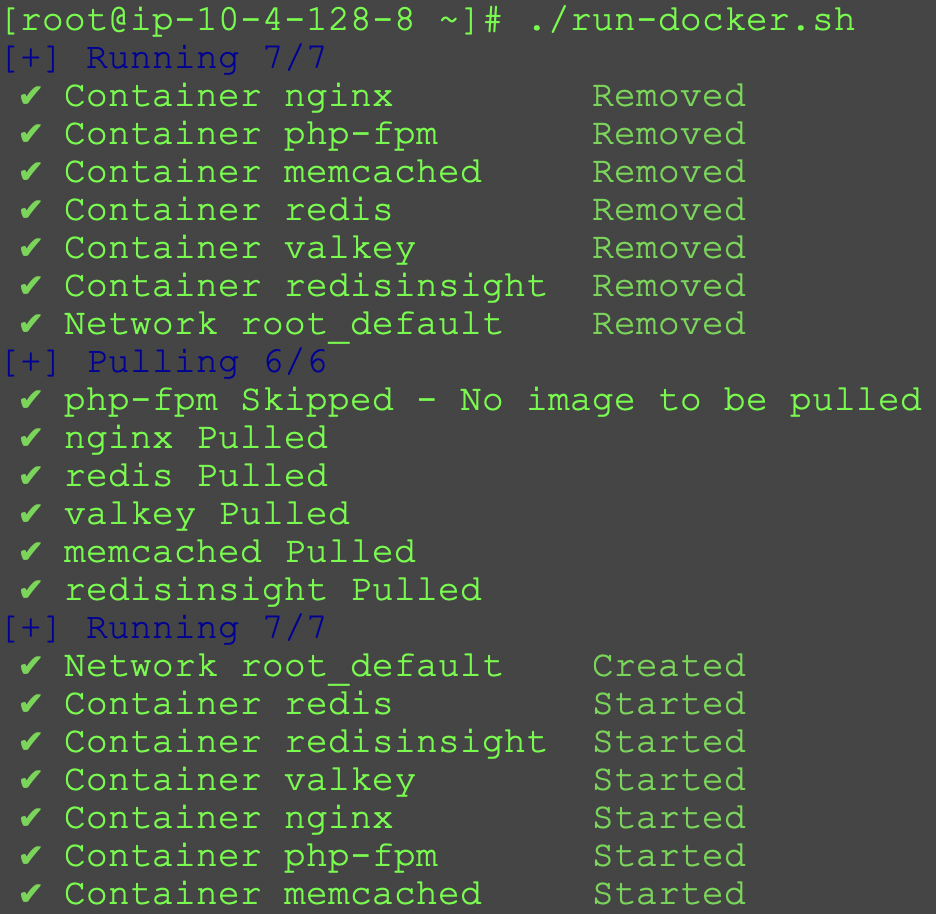
cat run-docker.sh

——

docker-compose down
sleep 2
docker-compose pull
docker-compose up -d --force-recreate

cat /etc/systemd/system/docker-compose-app.service

[Unit]
Description=Docker Compose Application Service
Requires=docker.service
After=docker.service
[Service]
Type=oneshot
RemainAfterExit=yes
WorkingDirectory=/root
ExecStart=/usr/local/bin/docker-compose up -d
ExecStop=/usr/local/bin/docker-compose down
TimeoutStartSec=0
[Install]
WantedBy=multi-user.target

——

cat nginx.conf | grep www-data

——

user    www-data;

——

cat php-fpm.d/www.conf |grep www-data

——

user = www-data
group = www-data
listen.owner = www-data
listen.group = www-data

——

wordpress wp-config.php

——

define('WP_REDIS_HOST', 'valkey');
...
define('DB_HOST', 'mysql-server');

但是完成之後,我並沒有想要遷移到Docker ,這種管理一致性對於單個節點的blog 來說並沒有帶來多大的好處。

因為在現代的FreeBSD(以前的不行,repo 裡面的software 都too old)上可以定時pkg upgrade 以達成升級到最新版本組件的目的,而大多數Linux 可以通過dnf-automatic 來自動升級。

一個適用的場景應該是,每一個網站使用不同的容器,可以進行彼此的隔離,還可以對容器的資源使用進行限制,非常適合大家共享一台主機資源的時候。

或者是,多個服務組件在不同的host 上分別部署,互相作為cluster 的節點,只有在cluster 的架構上,才會展現出優勢。

10 月 25 日, 2025 年

使用ffmpeg 無損合併GoPro 的mp4

Ken 隨筆 0 Comments

GoPro 的mp4 文件很零散,看得頭疼。2018年去帛琉的mp4 自從拍回來就再也沒看過,今年去歐洲的又增加了200多個Gigabyte,因為一個一個點起來實在是太累,這不好。

創建一個filelist.txt

file 'GOPR4700.MP4'
file 'GOPR4701.MP4'
file 'GOPR4702.MP4'
file 'GOPR4740.MP4'
file 'GOPR4741.MP4'
file 'GOPR4742.MP4'
file 'GOPR4743.MP4'
file 'GOPR4744.MP4'
file 'GOPR4745.MP4'
file 'GOPR4746.MP4'
file 'GOPR4747.MP4'
file 'GOPR4748.MP4'
file 'GOPR4749.MP4'
file 'GOPR4750.MP4'
file 'GOPR4751.MP4'

使用ffmpeg 合併:

ffmpeg -threads 2 -f concat -safe 0 -i filelist.txt -c copy /mnt/2018-Palau.mp4

然後上傳到Youtube ,一個20G 的文件,他居然要好幾個小時,好吧,是我的網路太爛了。

10 月 4 日, 2025 年

NETGEAR® WiFi 6 AX1800 Dual-band Access Point with Gigabit PoE

Ken Tech 0 Comments

Apple 不做Wi-Fi router 大概是覺得這東西隨便做一個就吊打所有人,所以2018年就停產了Wi-Fi router,然而快十年後的今天他依然可以 以很穩定的狀態運行。

使用多年的Apple Airport Extreme 最近有一些莫名其妙的問題,5G 頻段的訊號有時候會突然消失,只剩下2.4G 頻段的訊號,過一段時間又自己恢復正常,看起來像是5G Wi-Fi模組reboot 了或是怎樣,但他是一個封閉的OS,無從考究。

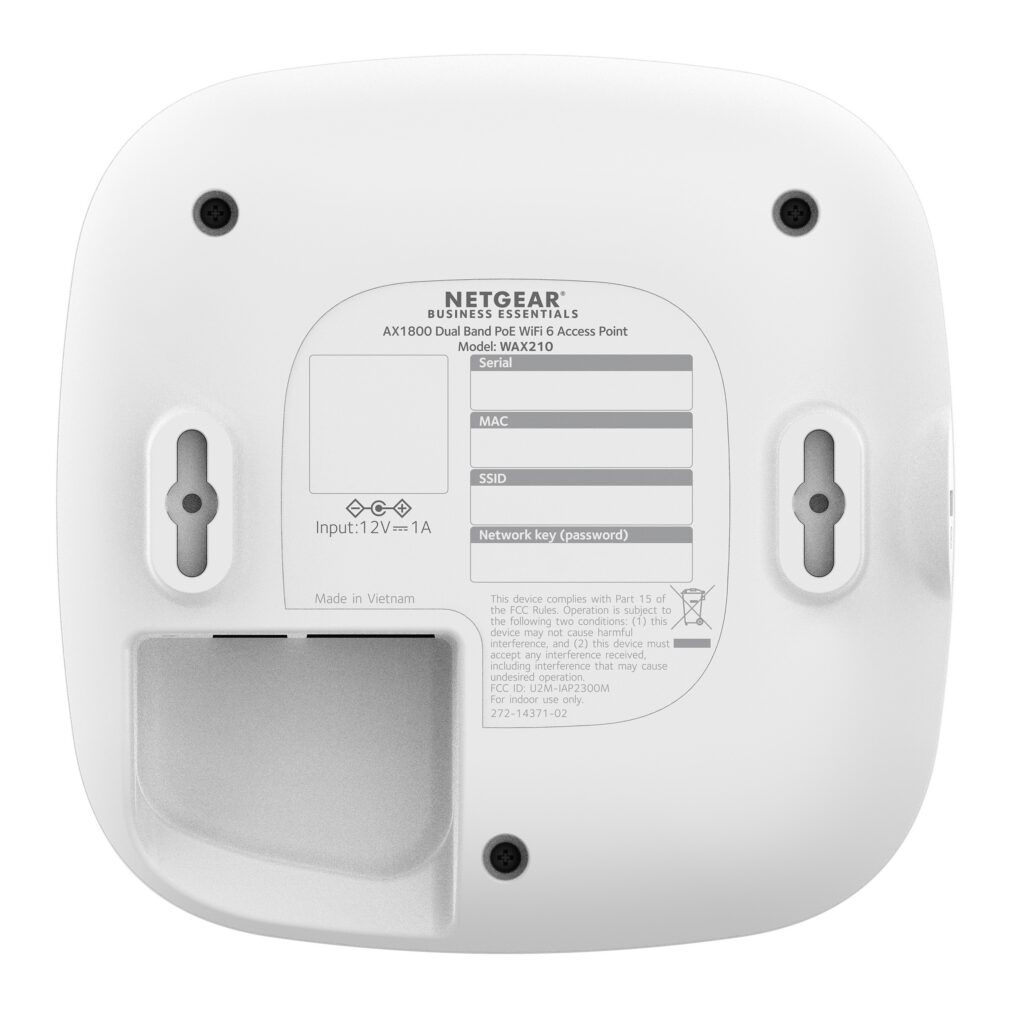
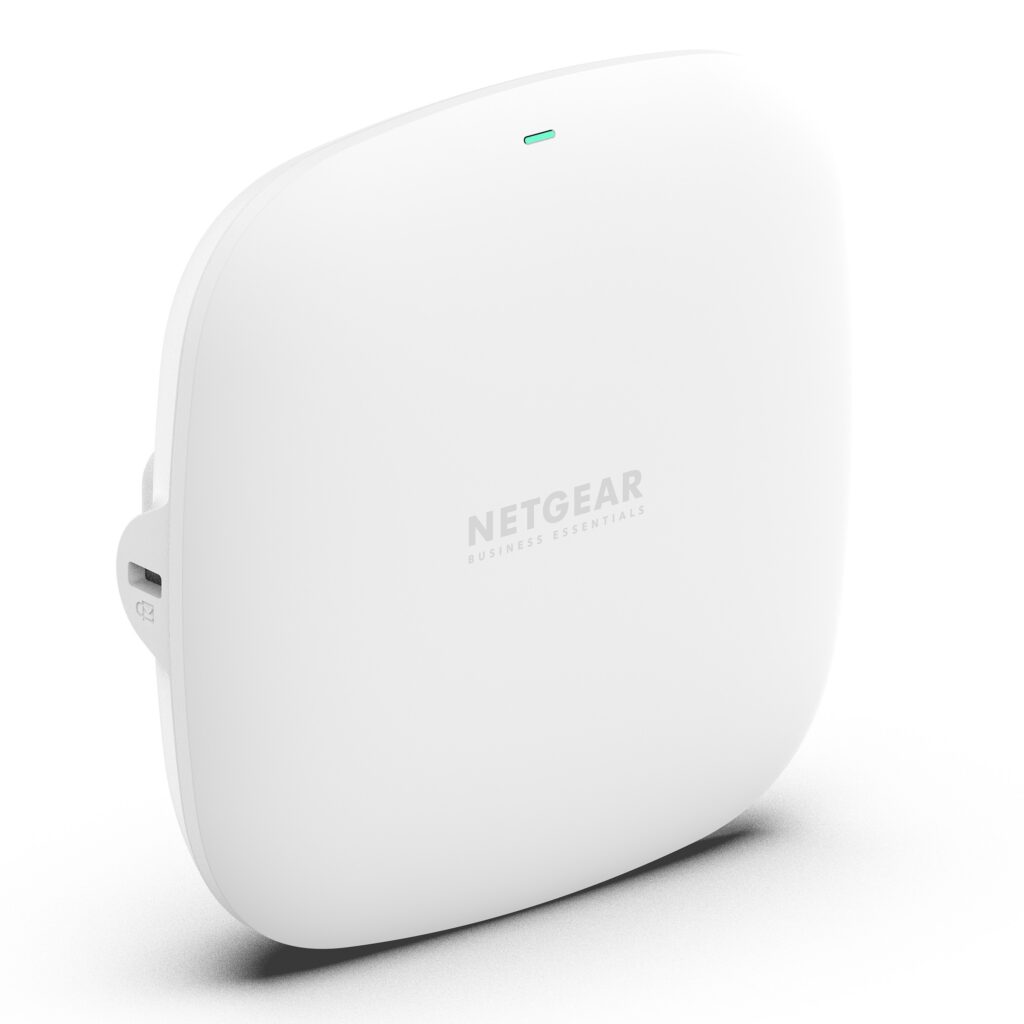
所以只好開始選AP,我一向不太喜歡Asus 那種樹著八根天線的Wi-Fi router,而更喜歡商用產品,但是Cisco 太貴而且太大,而且動不動就要一個獨立的AP controller,這就很煩,突然發現Netgear WAX210 正在Amazon 上特價,只要49$,體積還很迷你,立刻下單。

收到貨立刻加電,調試,上線,完工,之前的網路中用兩個Wi-Fi router 做AP 來隔離IoT,貴賓網路和default vlan,現在終於可以只用一個AP就可以完成所有的Wi-Fi 接入。

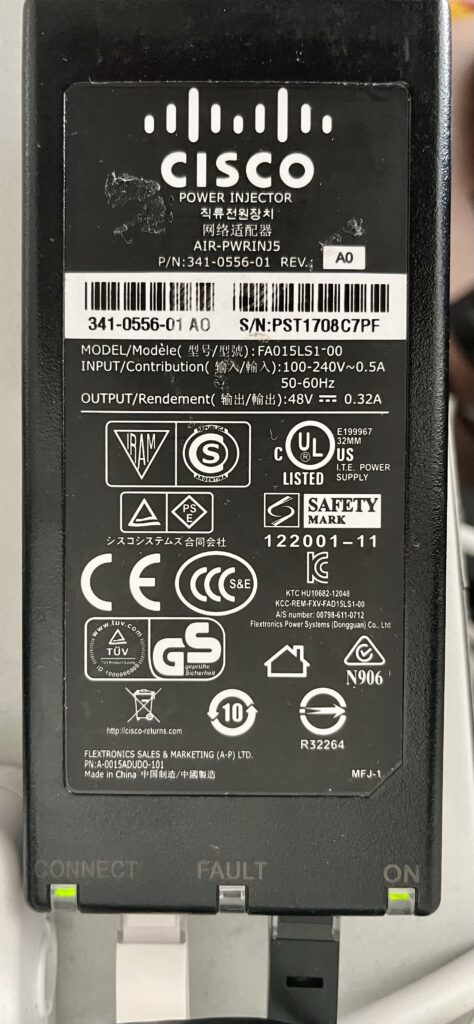
從櫃子裡面翻了一個古早的Cisco POE 電源,插上去一看,嗯?怎麼只有100M?啊,這個POE 電源是100M 的……

沒時間去買一個新的POE 電源,只好找了閒置Netgear switch 的電源插上去,覺得不太對,檢索了一下網路,這個電源是1G 的,看起來是cable 的問題,換了一根,成功接入為1G。

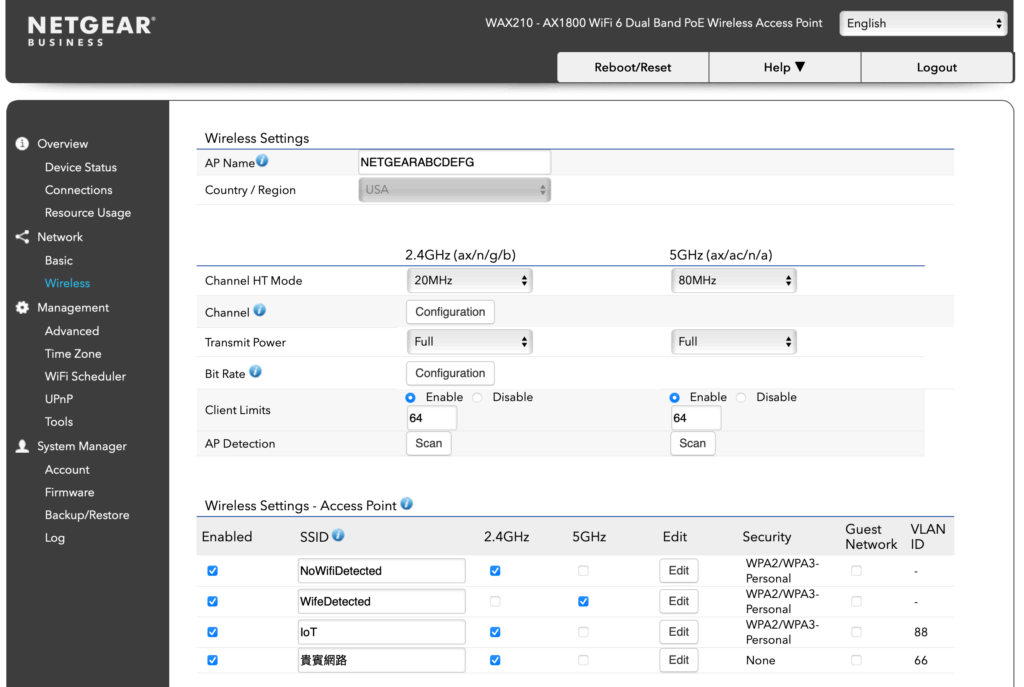
這頁面風格,他媽的 一看就是OpenWRT,沒想到啊沒想到Netgear 竟然拿OpenWRT 來賣錢!

而且他還是 /cgi-bin/luci/ ,這就100% sure 了。

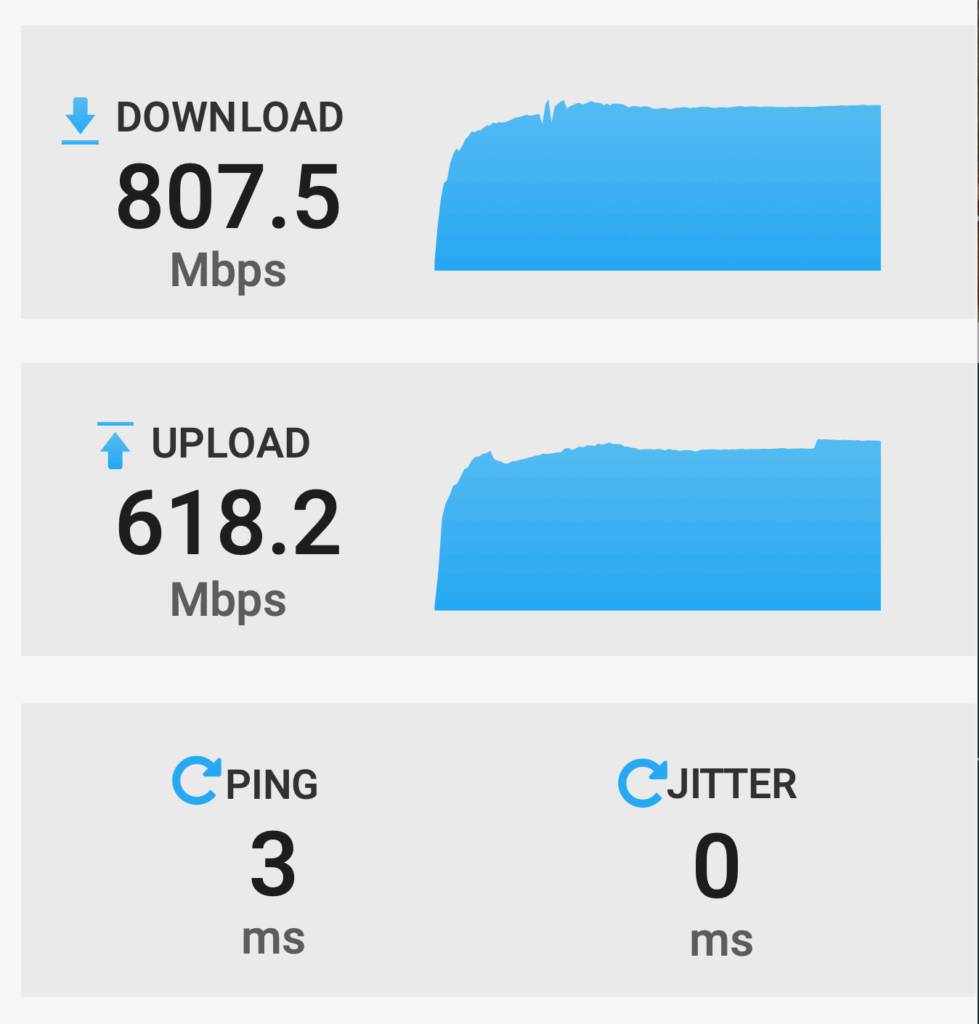
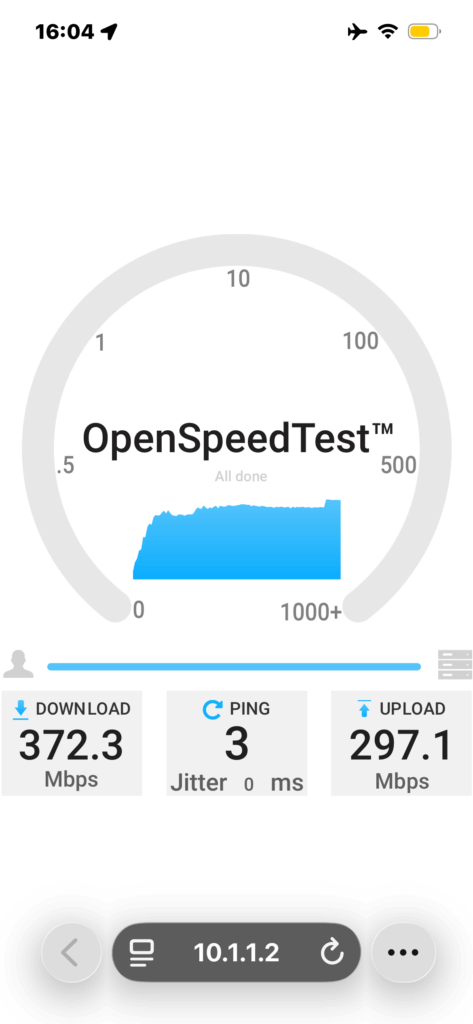
實際測速的表現如下:

使用MacBook 測試,速度顯得較快,可能是因為MacBook 的天線有MIMO?

iPhone 測速明顯慢了一些,可能是因為iPhone 沒有MIMO?

也可能是天線大小的原因。

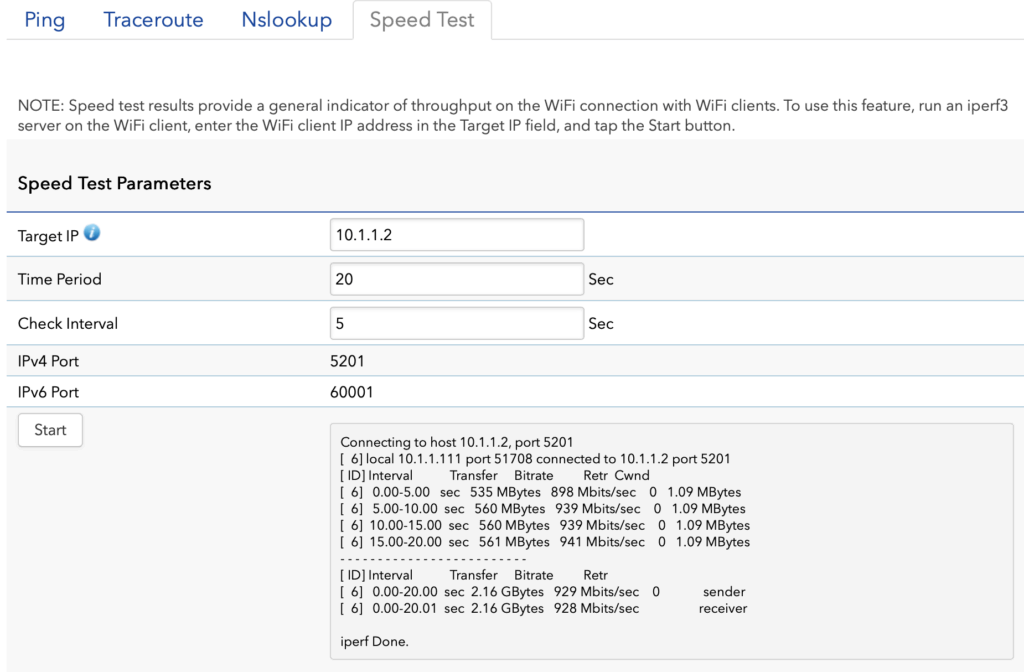
這個AP 上還很貼心的為您安裝了iperf3 ,您甚至可以直接從AP 上測速:

這個功能的設置毫無疑問是為了排除client 的問題,意即不要用你的客戶端問題來侮辱我的速率。

那我覺得,只要可以ssh進去,感覺裝什麼東西上去應該都是可以的。

9 月 9 日, 2025 年

其實這個封禁配置是合理的

Ken Tech 0 Comments

長期以來在各類雲端平台上都會有一個限制,不允許虛擬機向外部的Email 伺服器25 port 發送email。

我一直以為這個限制是針對整個Email 體系,包括smtps ,但,並不是,這個限制只針對於明文的25 port。

那麼這個限制就變得非常合理,因為當代Email 已經很少使用明文傳送,絕大部分是基於smtps,小部分明文要麼是因為Email server 陳舊,要麼是因為application 中的既有代碼無法修改,要麼就是垃圾郵件發送者。

之所以會提到這個問題,是因為我的server 上跑了很多crontab,有時候某一個crontab 失敗了但是卻無法知曉,在古早的年代,crontab 的email 可以隨意的發送到各大郵件服務提供商,現在當然是不行。

所以簡單的搜索了一下Internet,找到了一些解決方式,使用Amazon SES 是一種方式,反正你只是自己給自己的inbox 發嘛,但是,Email 再少,它也是要付錢的。

有沒有不要錢的呢?有。

可以使用Gmail 的app password 來配置使用Gmail 的smtps 發送email,由於它不是明文25 port 而是密文587 port,所以在各大雲端平台上並沒有什麼阻礙。

在Amazon Linux 2023 上使用Postfix 配置如下:

======Postfix@Amazon Linux 2023======
dnf install postfix -y
vi /etc/postfix/main.cf

relayhost = [smtp.gmail.com]:587
smtp_sasl_auth_enable = yes
smtp_sasl_password_maps = hash:/etc/postfix/sasl_passwd
smtp_sasl_security_options = noanonymous
smtp_tls_security_level = encrypt

cat > /etc/postfix/sasl_passwd <<'EOF'
[smtp.gmail.com]:587 yourname@gmail.com:yourapppassword
EOF

chmod 600 /etc/postfix/sasl_passwd

postmap /etc/postfix/sasl_passwd

systemctl enable postfix
service postfix restart

而在FreeBSD上,較新版本預置了一個 DMA(DragonFly Mail Agent) ,比古早的Sendmail 小很多,我一直不太明白為什麼Sendmail 那個龐然大物在FreeBSD 中生存了那麼多年,DMA 的配置比Postfix 更簡單一些。

=======FreeBSD======
vi /etc/dma/dma.conf

SMARTHOST smtp.gmail.com
PORT 587
AUTHPATH /etc/dma/auth.conf
SECURETRANSFER
STARTTLS

cat > /etc/dma/auth.conf <<'EOF'
yourname@gmail.com|smtp.gmail.com:yourapppassword
EOF

如果是在MacOS 上呢,也是可以配置的,這主要是因為我的Macbook 上也跑了一些crontab,而我需要知道他們執行是否成功或者失敗。

======MacOS======
brew install msmtp

vi ~/.msmtprc
defaults
auth on
tls on
tls_trust_file /etc/ssl/cert.pem

account gmail
host smtp.gmail.com
port 587
from yourname@gmail.com
user yourname@gmail.com
password yourapppassword

account default : gmail

chmod 600 ~/.msmtprc

echo 'set sendmail="/opt/homebrew/bin/msmtp"' | sudo tee -a /etc/mail.rc

sudo ln -sf /opt/homebrew/bin/msmtp /usr/local/bin/sendmail


最後一步是在 /etc/aliases 中添加目的地址,形如:
root: yourname@gmail.com

修改後,執行一下 /usr/bin/newaliases 讀取這個配置文件生成新的 /etc/aliases.db 。

特別說明:對於那些屏蔽了gmail 的國家而言,可以在互聯互通的服務器上使用socat 作為代理轉發。同理也可用於自己的客戶端收發gmail。

以FreeBSD為例:

sudo pkg install socat

sysrc socat_enable="YES"


vi /usr/local/etc/socat-instances.conf

add:

[gmailproxy]
daemonuser=root
flags="TCP-LISTEN:587,reuseaddr,fork TCP:smtp.gmail.com:587"

service socat start gmailproxy
service socat status gmailproxy

在需要收發gmail 的PC 上設置/etc/hosts ,將smtp.gmail.com 指向socat 所在的服務器IP地址,完成。

«‹ 4 5 6 7›»

過 客

  1. R2 on 卷進了美商5 月 15 日, 2024 年

    终于回来了,好。

  2. Ken on Mommy最後的樣子11 月 6 日, 2023 年

    也沒有很久吧,最近終於閒下來

  3. R2 on Mommy最後的樣子10 月 26 日, 2023 年

    好久不见

  4. Ken on 天朝Loli控组曲(带歌词,修正版)10 月 12 日, 2023 年

    哈哈哈,祝福你,好人一生平安

  5. liu on 天朝Loli控组曲(带歌词,修正版)10 月 12 日, 2023 年

    hello,我在找天朝lolicon组曲时发现了你的博客,感谢你十四年前做出的贡献,祝一切安好

March 2026
S M T W T F S
1234567
891011121314
15161718192021
22232425262728
293031  
« Feb    

Spam Blocked

102,558 spam blocked by Akismet

↑

© 初心易得,始終難守 2026
Powered by WordPress • Themify WordPress Themes